Is AI Going to Take Over Tech Programming Jobs?

As technology keeps getting smarter, a big question on everyone’s mind is whether artificial intelligence (AI) will start doing the job of tech programmers. Let’s take a closer look at this and what current software developers can do to stay on top of things.

Will AI Replace Tech Programmers?

While AI has come a long way, it’s unlikely to completely kick human programmers to the curb in the next five years. Programming isn’t just about writing lines of code; it’s about problem-solving, creativity, and understanding complex stuff. Sure, AI can help with some tasks like writing code and spotting bugs, but it’s not quite ready to take over the whole show.

What Should Software Developers Do to Get Ready?

  1. Make Friends with AI: Instead of worrying about AI stealing their thunder, software developers can see it as a buddy that helps them work better. Learning how to use AI tools can speed things up and free up time for more interesting tasks.
  2. Brush Up on People Skills: Tech skills are important, but so are people skills like teamwork and communication. These are things AI can’t do, so they’re worth polishing up on.
  3. Keep Up with the Times: The tech world moves fast, with new stuff popping up all the time. Software developers should stay in the loop with what’s hot and keep learning to stay sharp.
  4. Find Your Niche: While AI can do a lot, there will always be a need for experts in certain areas. By specializing in something you’re passionate about, you’ll stay valuable.
  5. Keep Learning: The best way to stay ahead of the game is to keep learning. Whether it’s taking a course or picking up a new skill, staying curious will pay off in the long run.

In a Nutshell

AI might be getting smarter, but it’s not about to push tech programmers out of a job just yet. By teaming up with AI, sharpening people skills, staying up-to-date, finding a niche, and never stopping learning, software developers can keep on thriving in the ever-changing world of tech. For the time being, I tend to think of AI as a friend that can help you get your job done better and faster.

This image has an empty alt attribute; its file name is image-8.png

This article aims to advise software developers navigating AI and programming. While the future is uncertain, staying adaptable and open to learning will always be key.

Unlocking Two-Factor Authentication (2FA): A Simple Guide

In online security, protecting your digital identity is crucial. Two-Factor Authentication (2FA) is a powerful tool for keeping your accounts safe from unauthorized access. This posting breaks down 2FA, looking at its methods, benefits, and potential drawbacks.

Understanding Two-Factor Authentication

This image has an empty alt attribute; its file name is user-2fa.png

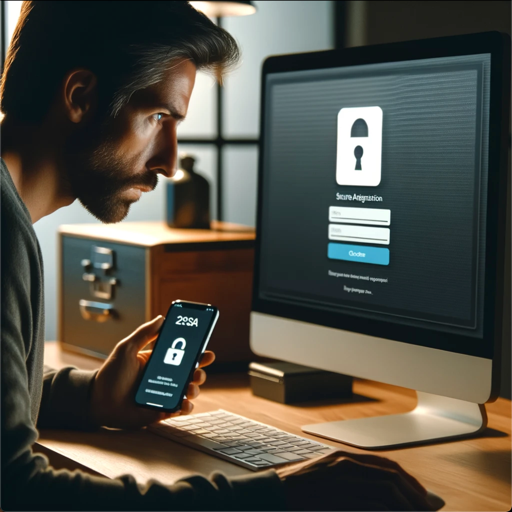
2FA adds an extra layer of security to the traditional username-password setup. Instead of just using a password, 2FA requires another way to confirm your identity, like using your phone or a fingerprint. By requiring two different methods to log in, 2FA makes it harder for hackers to get into your accounts, even if they know your password.

Exploring 2FA Methods

  1. SMS Authentication:
    • Pros: Easy to use, as it sends a code to your phone.
    • Cons: Vulnerable to attacks where someone else takes control of your phone number.
  2. Time-Based One-Time Passwords (TOTP):
    • Pros: Adds an extra layer of security by generating a unique code that changes over time.
    • Cons: Relies on having a device with the right software to generate the codes.
  3. Push Notifications:
    • Pros: Convenient, as it sends a notification to your device for approval.
    • Cons: Prone to phishing attacks, where someone tricks you into approving access.
  4. Biometric Authentication:
    • Pros: Convenient and secure, using things like your fingerprint or face to confirm your identity.
    • Cons: Can be risky if someone steals or copies your biometric data.
  5. Hardware Tokens:
    • Pros: Provides offline authentication, reducing the need for an internet connection.
    • Cons: Can be expensive and challenging to manage.

Choosing the Right 2FA Method

The best method for you depends on your preferences and security needs. While SMS authentication is straightforward, more security-conscious users might prefer methods like TOTP or biometric authentication.

Best Practices for Implementing 2FA

  • Educate yourself and others about the importance of 2FA.
  • Use 2FA on all your accounts whenever possible.
  • Keep your 2FA settings up to date and review them regularly.
  • Be cautious of phishing attempts and always verify requests for authentication.

In Conclusion

Two-Factor Authentication is essential for helping you protect your online accounts from unauthorized access. By understanding the different methods and following best practices, you can enhance your digital security and keep your information safe.

Stay vigilant, stay secure, and make the most of 2FA to protect your digital identity.

—–

Please read our site disclaimer.

Protect Your Online Security: The Risks of Reusing Passwords and Weak Passwords, Plus Top Password Manager Recommendations

In today’s digital world, keeping your online accounts secure is essential to safeguarding your personal information and digital identity. With over 1 Billion records exposed in various breaches, doing everything you can to keep your information as private as possible is critical.

Let’s try to avoid getting hacked!

However, there are common pitfalls that put individuals at risk: using the same password for multiple accounts and using weak passwords.

Let’s explore the dangers of these pitfalls:

(1) Using a Single Password for All Accounts:

Heightened Risk of Account Compromise: Reusing the same password across multiple accounts increases the chances of a security breach. If one account is compromised, hackers can access all other accounts using the same password, leading to potential identity theft or financial loss.

Vulnerability to Credential Stuffing: Cybercriminals exploit password reuse through credential stuffing attacks. Once they obtain login credentials from one breached account, they attempt to use the same credentials on other websites, exploiting the practice of password reuse.

Limited Protection Against Data Breaches: Data breaches are common, and passwords leaked from one breach can be used to access other accounts if the same password is reused. Using unique passwords for each account is crucial to minimizing the impact of data breaches.

(2) Using Weak Passwords:

Prone to Guessing: Weak passwords, like “password123” or common dictionary words, are easily guessed by attackers using automated tools. These passwords offer minimal protection against brute-force attacks. Try doing a search for the last year’s top worst 200 passwords. Sadly, this list is nearly identical from year to year! If you have a password that is similar to any of these, you really do not have a password at all.

Some examples of commonly used weak (non-) passwords that have been problematic for years due to their lack of complexity and susceptibility to being guessed or cracked easily:

  • 123456
  • password
  • qwerty
  • abc123
  • iloveyou
  • admin
  • welcome
  • letmein
  • 123456789
  • football
  • Password1

Susceptible to Dictionary Attacks: Attackers can use dictionaries of commonly used passwords or words found in literature, movies, or online forums to guess weak passwords. With readily available information online, it’s relatively simple for attackers to crack weak passwords.

Easy Targets for Phishing: Weak passwords often contain easily memorable phrases or personal information, making users more susceptible to phishing attacks. Attackers can exploit this information to trick individuals into divulging their login credentials.

To mitigate these risks, it’s crucial to practice good password hygiene and use a reliable password manager.

Below are two highly recommended password managers from reviews online.

1Password: 1Password is praised for its simplicity and robust encryption. It provides secure password storage, item organization, and integrates well with various platforms and browsers. Additional features include secure password sharing and a travel mode for enhanced protection.

Bitwarden: Emphasizing privacy and open-source software, Bitwarden offers end-to-end encryption and supports two-factor authentication. It’s highly customizable, allowing users to self-host their password vaults for maximum control over their data. Bitwarden also offers a free version which may be more than enough for most users.

The general consensus is to create a unique strong password (as long as a site allows) that you cannot remember (an indication of its strength) for every site you visit or for account you have.

By prioritizing password security and leveraging reputable password manager solutions like LastPass, 1Password, or Bitwarden, you can enhance your online security and protect your digital identity more effectively.

Things not discussed in this posting

After having written the posting above, Passwords may be (finally) on their way out! There have been so many strategies over the years to help people have and use safer passwords for basic password security.

Unfortunately, when the average user might have well over 100 sites or log-ins for which they need to manage passwords, without a Password Manager password reuse and weak passwords are common problems. Technologies like Passkeys may eventually replace passwords entirely.

Tom’s Guide Article on Passkeys

Today, there are sites that, even if you use a very strong password, they still force you to change the password on their site every so many months. Using current technology, using a strong password could take a hacker, using brute force methods, more years to crack then there are stars in the universe. (See our other posting on this calculation. )

Additionally, there are sites that still limit you to, say, 20 password characters or further restrict what characters you can enter. All these restrictions are ridiculous and point to no standards or oversight.

The bottom line, unfortunately, is we have no idea how a site handles our password. Is it hashed? Is it stored in clear text?

Using 2FA was also not discussed here as there are several 2FA types deserving their own posting. Each of these 2FA types has their own advantages and (security) disadvantages. In general, however, 2FA is a good idea for any site you can use it with, but be sure you understand the limitations and possible security implications (SMS 2FA vs hardware key, for example).

Stay tuned for further postings on these topics!

(Try to) Encrypt Your Important Emails!

Introduction

Many people still seem to think that sending an email is secure—that only they and the person receiving the email can read it. However, nothing could be further from the truth. Without you doing something on purpose, sending email (and any attachments) has the same security as sending a postcard in the US mail. Almost anyone with server access could read it.

From its humble beginnings, Email (sadly, like many current technical products still to this day), now in use for over 50 years, was never developed with security in mind. Email’s main goal was to allow people to send messages, where before email such communication was next to impossible. Although Email is ubiquitous today, what gets sent via email is much different, and often much more personal, than in the past.

Email’s missing security should concern you, since most people who ask you to email some document have no idea that possibly sensitive information you’re sending could bounce around the Internet unprotected from prying eyes. That email could be stored on multiple servers en route, read by any administrator, etc., before finally making it to the destination (think: doctor, lawyer, bank, and other non-technical people who may innocently ask you to email something extremely private). Unless you do something on purpose to safeguard your email, or you know you’re using an encrypted email service, your email is sent in plain text that’s easy to read. 


So, what to do?

Use a Third-Party Email Service to Encrypt Your Emails

One solution would be to use a service like ProtonMail, which encrypts emails and keeps emails encrypted on ProtonMail’s email servers. If both the email recipient and email sender have ProtonMail accounts, your emails are are always encrypted. The shortcoming with this approach is that, however trusted ProtonMail may be, they have the “keys” to your emails. So, in theory, however unlikely, they could read your email. Although it’s still much better to have encryption from a third-party like ProtonMail over none at all, letting another company control the keys to your email has the same inherent risk with any third-party email company you pick.

Set Up Your Own Encryption

A more secure solution is to set up your own encrypted emails. Most popular email clients like Thunderbird, PostBox, MacMail, and even Outlook (on the PC only, currently) support PGP either directly (Thunderbird) or using a plug-in. Plug-ins are either free (Thunderbird, PostBox) or inexpensive (MacMail and Outlook). Check with your current email client to see how (and if) it supports PGP.

PGP (“Pretty Good Privacy”) is an email encryption method in which you generate a public key and a private key for each email account you want to secure (Note: you can use PGP outside of email, too). You never need to share a password. You then share your public key, as described below, so that others can send you encrypted emails.

To set up encrypted emails, you start by creating a “keyring”. For each email account you have, you create a “key pair”. A key pair has a public key and a private key. The keyring is a software construct (a file on your computer) in which you store your public and private keys (you NEVER share your private key with anyone) and public keys you have imported for other people. The key manager software creates public and private keys for each email address. If your email program supports PGP, it should automatically work with a key manager. Then, once you’ve created the keys in the key manager, you can use them to send encrypted emails.
Normally, all you need to do is enter the email address in the “TO” line of an email and click “encrypt” (or similar, depending on the email program) and the email program will find the public key (in your keyring) of the person you are emailing and encrypt the email automatically when you send it.
Since many emails don’t need to be encrypted, encrypting an email is always optional. You decide which emails to encrypt and which not to encrypt.

Sharing Your Public Key and How to Send Encrypted Emails Back and Forth

To understand what’s really going on, here’s the flow: for person A to send an encrypted email to person B, person A has to first import person B’s “public” key into his keyring (you NEVER share your private key). Then, person A creates an email and encrypts the email to person B using Person B’s public key. Finally, person A sends the encrypted email to person B. When person B receives the encrypted email from person A, person B’s email program uses his private key (again, from the keyring) to decrypt and display the message person A sent him using person B’s public key).
Key point: The private key undoes the encryption the public key creates.
Note that many email programs will automatically know when you enter the email address, in this case for person B, that there is a public key available for person B and fill it in for you.
Similarly, for person B to reply to person A, person B would also have imported Person A’s public key.
Unless a key has an expiration date (an option when setting up the key-pair), you only need to import a person’s public key once.
Also, it’s perfectly acceptable to ask for someone’s public key to send a secure (encrypted) email.
There are also online public key repositories where some people store their public keys. You can also store your public key on your website. It’s public. A key benefit with PGP is there is no password sharing needed.

Limitations

The challenge with the encrypted email is that both email sender and receiver must be sharing their public keys. Therefore, to send/receive encrypted email with someone, you must have already set up PGP (creating your public and private keys for your email accounts and importing any public keys from people to whom you wish to send email). You can’t simply send an encrypted email using PGP to someone who has not shared their public key with you.
Another issue is that if you ask many people for their public key, they won’t have any idea what you’re asking them. You can try to explain what you are trying to do to secure your email, but you might only hear silence.
In cases where people have no idea what PGP encryption is, as mentioned above, you could try to use ProtonMail or a similar service. Using a third party company is still better than sending a totally insecure email. However, it may again be the case where the recipient does not use a third-party email encryption solution.
Another even less desirable option would be to send a password-encrypted zip file or similar. However, note that sending anything “password-protected” means you must share the password, which is the inherent problem PGP solves. With PGP, you freely share your public key. If you send a password using some other non-PGP method, then you must share that password. This old-style password approach is not secure since the password could be intercepted making your email readable again. Or, to share the password, maybe you call the person on the phone to say what the password is. Your (cell, VOIP, …) phone could be intercepted, too.
So, if all else fails, see if the recipient (the person who is asking you to send sensitive information in unprotected email) has a “portal” (a secure website you could log into) backed by HTTPS and then securely upload any documents.
The good news is that finding people who understand and use encryption is not as difficult as you might think and securing your personal and business data are well worth the effort.

Conclusion

Setting up secure email is often important for individuals and for businesses. Ask yourself if “this email” you’re about to send would be OK to print on a US postcard and drop in the US Mail in plain unprotected text. If you answer “no”, then you need to do something “on purpose” — like setting up encrypted email. There are plenty of “how-to” guides online that walk you through setting up PGP email (aka, GPG) for various email clients.
The workflow described above may sound complicated, but once you get PGP set up, and understand how it works, using it is simple and unobtrusive.
With any of these approaches above—even PGP, there is no guarantee what the recipient will do with your data once he decrypts your email and has your original, unencrypted, document(s). Thus, there is always the decision whether something should be emailed (sent) … at all.

This image has an empty alt attribute; its file name is image.png

Finally, with higher and higher Q-bit computing, we will probably soon need quantum-safe encrypted email. More on this topic in a future article.

Enjoy!

^^^^^^^^^^^^^^^^^^^^^^^^^^^^^^^^^^^^^^^^^^^^^^^^^^^^^^^
Please read our disclaimer available from our home page.

Is “The Cloud” a Good Solution For You?

  • Introduction

    – With everything in the media about “The Cloud”, you might think
      it’s the best new thing out there. However, there are some good
      things and even some not so good things to consider. You could
      think of  “The Cloud” as another hard drive somewhere else on the
      Internet that you don’t control. Flexibility and convenience are
      among the greatest cloud benefits whereas vendor lock-in and loss
      of control of your data are among the least useful items. We’ll
      take a look at just a couple of popular cloud use cases. Whether
      the cloud is right for you, for those things you can control –
      your data – is up to you.

      The blog below makes a few points and asks a few questions to
      consider.

– The Cloud In General

    – The good (these are very good reasons to consider using the cloud)
        – Works from any computer
            – Create an account using DropBox, SkyDrive, or iCloud and
              you’re easily able to store and, in most cases, sync your
              data across multiple devices
        – Usually free to use up to a certain data threshold
        – It’s easy. Nothing much to set up other than the basic cloud
          server connection information
    – The not as good (these are very good reasons to be skeptical
      about using the cloud)
        – Vendor lock-in
            – Proprietary cloud solutions by major vendors
                – iCloud, SkyDrive, …
                – No secret that companies want you to use their cloud
                  implementations so you’re “stuck” with them
        – Change of Service provisions
            – “Terms of Service” and their inevitable changes you must
              agree to use and to continue to use the cloud service
                – Remember if it’s free….”you are the product.”
                – Service could go from free to paid at any time
                – Shrinking free data amounts over time
        – Your data is under the total control, whims, and profit
          motives, of the cloud vendor
        – Your cloud account could be disabled, removed, or corrupted
          through no fault of your own
            – As one example, read the article below and draw your own conclusions:
              http://www.pcmag.com/article2/0,2817,2456807,00.asp
            – What happens to your data if your account is removed,
              locked out, corrupted, hacked, etc.?
                – Do you have a backup for this contingency?
                – Did you also have a local copy of your data or did
                  you trust the cloud to be totally fault tolerant?
        – Questions exist about who actually “owns” your data when it’s
          cloud-hosted
            – (yikes!)

– Cloud Computing

    – Cloud Computing is when you run applications from the Internet,
      not from your computer. You generally, almost always, pay a
      regular fee to use these applications.
    – Advantages
        – Software is usually up to date
        – Use the software only when you need it
        – Limits software installed locally and maintaining it
        – Less money up front to get software access
    – Disadvantages
        – Pay to play required — If you don’t pay the fee, you don’t
          have the software
        – Harkens back to mainframe computer days where you get
          services from the “mainframe”, now “the cloud”
        – Seen by many as a cash grab, mainly serving to improve
          monthly cash flow for software vendors
       – Losing Internet connection or the company going offline for technical
          or other reasons means no application access

      
– Cloud Backups and Restores

    – You lose control of your backed up data “in the cloud” (someone
      else’s computer/disk)
    – Does the cloud vendor offer full backups (disk images) or only
      partial backups?
        – This cloud vendor backup completeness (that is a whole disk
          image vs. just data) can vary even by computer operating
          system
    – What’s the cost of the service?
    – Who has access to this data on the server?
        – ID Theft issues possible?
    – Does storing this data violate any HIPPA regulations? (May depend
      on answers to other questions.)
    – Is your computer data encrypted during transmission over the
      Internet (HTTPS)?
    – Does the HTTPS use OpennSSL, which could be vulnerable to the
      “Heartbleed” Internet bug?
    – Are you concerned with possible other ‘zero-day’ exploits that
      could put your data at risk?
    – How long does the backup take? Minutes?, hours?, many many hours?
        – What happens to your machine’s performance during long
          backups?
    – How are restores of your data done?
        – Who does restores in your office or work environment?
        – How do you search for a particular version of a backup file?
    – Can you also create local backups in case of lost Internet
      connectivity?
    – How long is data, from backup to backup, retained?
        – Can you go back and get a “version” of a file backed up last
          week? Last Month? Last Year?
        – As stated above, some cloud backups do not have full disk
          image backups and their “retention policy” over many multiple
          backups might not be what you want or expect. Thus, the
          backup company’s goals and yours may be, and probably are,
          out of sync. One of their goals, obviously, is to “minimize”
          how much data you store on their server(s). Therefore, their
          corresponding “retention policy” is one way how they manage
          data size on their server(s). Their retention policy could
          mean you might not be able to restore an older version (or
          other file) since it wasn’t  … “retained”.
    – Have you experimented calling technical support to see what help
      is available from the backup vendor?
    – Is the cloud backup itself … backed up?
        – How often?
        – By whom?
        – How does the backup company secure their backups of your data?
        – Who has access to this backed-up data?

    – Alternatives: Can you set up the same sync for free on your own?

        – In most cases, YES!
            – CalDav and CardDav are open standards supported by major
              vendors so you could set up your own server for syncing
              contacts, calendars, to-dos, and reminders.
        – Advantages
            – Your data is your own. No cloud company games. This is
              the primary advantage of having your own private cloud or
              sync service
            – Once setup, it’s always free (it’s your server!)
            – No data limits other than your own limits on disk space
            – None of the Change of Serve Terms of Service or other
              heavy-handed (“we’ve got you now”) cloud vendor games
            – Based on open standards so no vendor lock in
            – No chance your service could be canceled by mistake
        – Disadvantages
            – Without VPN, the sync would not work everywhere
            – You are responsible for the server maintenance and updates
                – You could still lose your data if you don’t backup
                  your data and your machine dies
            – Backing up your Synced Data
                – You have to learn and use backup software
                    – Current versions of Windows include backup and
                      Mac systems have built-in Time Machine that
                      automatically creates versioned backups
                    – Have to buy backup infrastructure like USB hard
                      drives
                    – Need to consider offsite backup and other
                      strategies
            – Can initially be complicated to set up
                – Videos on the web make setting up a sync server
                  relatively easy
            – Server must be up and running for sync
                – No one to directly support you if problems arise
                – Will require special software configuration so
                  calendar, todos, and other programs don’t try to sync
                  when server is not up

– Other free alternatives

    – There are free web alternatives to DropBox, for example. However,
      these, again, are web cloud-based services so you have to agree
      to Terms and Conditions. Implicit among these terms and
      conditions is that YOU are the product and that these terms and
      conditions can (and probably will) change without notice. Local
      server options also exist, but these options often require a
      static IP address which means you might have to upgrade to a more
      expensive (home) business account.

– Conclusion

    – The cloud offers incredible convenience and ways to share and
      collaborate that we’ve never seen—especially in enterprise
      environments. However,  for home and for small business users,
      the case for cloud, while still strong, has some significant
      drawbacks to consider.  While businesses are embracing the cloud
      for its cost-cutting benefits, these same benefits for business
      may put your data at risk. What you do when your cloud account
      gets accidentally deleted or through some “misunderstanding” is a
      serious concern. Even in the best case, consider the case where
      you lose Internet for days or longer because of some natural
      disaster. Therefore, “the cloud” for storage of personal and
      small business information, while very compelling because of its
      ease, is still a mixed bag.
    ———

      Please read our disclaimer available from our home page

Should Everyone Learn To Program?

Reading the news nowadays it seems that many people are saying that everyone should learn to program. But is this skill really necessary or even a good idea for…everyone?  (Hint: NO!)

The actual skill people need to learn is critical thinking and problem solving. Programming, or “coding”, is that last part….after you have done the thinking and solved the problem. The coding then is merely the translation of the solved problem into a computer program for execution. (Don’t expect the computer to solve a problem you yourself don’t understand.)

Yet, deciding on whether to learn to code may not be an option depending on where you are in the educational system, but learning to code (program) has advantages and disadvantages. Keep in mind that …”just because you drive a car doesn’t mean you need to become a mechanic”.

Quick Example: How many times does this for loop run (pseudo code)?
For i = 0 and ≤ 10
    do <something>

(Ans: 11)

The above example is a classic “off by one” error that is present in many computer programs. Note that this error is “logic” problem. Fixing logic errors can take lots of time once the programmer fixes any syntax errors.

Below are some advantages and disadvantages of learning to code:

    – Advantages
    •     helps train the mind how to solve problems
    •    could help prepare someone for an inevitable future working, in some way, with computers
    •    can be extremely rewarding
    •    gives you total control of the machine
    •    programmers are in huge demand ($)

    – Disadvantages
    •    coding is not for everyone (critical thinking is)
    •    can take many years to be truly proficient in a single language
    •    learning to code may never help someone use the computer for the applications they actually need for their job
    •    very time consuming to learn
    •    very time consuming to do
    •    can be extremely frustrating
    •    requires setup and learning about complementing technologies
    •    requires some development environment setup
    •    requires constant effort to stay up with current versions and technologies
    
    – Alternatives
    Become a power user. Many people would benefit far more from learning to use their applications more fully. Perhaps also learn some basic scripting on their computer, for example learn some basic AppleScript, to better interact and control applications.  Additionally, on the Mac, there’s an excellent program called Keyboard Maestro, which enables its users to easily create powerful computer “programs” (macros). For the average person looking to automate their workflows and increase their productivity, programs like Keyboard Maestro might be much better than learning to code in say, Java or C++.

    – Suggestion
            If you’re interested in seeing if coding is for you, try a programming class at your local community college where you can work with others and share experiences. Most of these classes will focus on problem solving first.

    – Conclusion
    Coding can be fun and extremely rewarding, but it’s not for everyone. If you don’t love to work through a difficult “debug” problem (often for hours) to finally arrive at “working code”, you may find that coding is really not for you. And, that’s OK. But, if you get that programmer’s “high” after solving a difficult program issue, then programming may be just the ticket.

——–

Please read our disclaimer available from our home page

Go Paperless!

▾    Why go paperless?
    ▾    Going green
    ▾    Getting bank and other company statements electronically reduces waste at many levels.
    •    Trees being cut down for paper
    •    Paper delivered to stores and to companies
    ▾    Company resources to print paper
    •    Printer, ink, electricity, mailing fees
    •    Paper transmitted via truck, mail, etc., takes fuel and further pollutes the atmosphere
    •    Paper waste (stuff you throw out) ends up in landfills polluting the environment
    ▾    Less clutter
    •    Having a paperless office, or a mostly one, means you don’t have stacks of paper everywhere in boxes and file cabinets.
    ▾    Better security
    •    If you have good data security, then your data on your computer should be more protected than paper files
    ▾    Disaster Recovery
    ▾    If you had a fire or flood, your offsite backed up paperless files would be totally intact.
    •    Note: Offsite backup is a serious topic but not discussed in this blog.
    ▾    Being able to find information quickly
    •    This is one of the best reasons to go paperless – SEARCH!
    •    Using software utilities, discussed below, be able to find just about anything ever scanned in seconds.
    ▾    Be able to automate paperless workflow!
    •    If it’s not automated, why do it? 

▾    What you need

    ▾    A good scanner (not a flatbed scanner — too slow and cumbersome!)
    ▾    Take a look at the ScanSnap ix500. It can scan 25 pages per minute, double sided color, with OCR.
    •    Can also scan to MS Office formats, PDF.
    •    Includes a “Card Minder” application for scanning business cards
    ▾    Some software
    ▾    Scanner’s included software
    •    Scan to PDF
    •    Scan to Folder
    ▾    Automated software to move, sort, and rename your scanned images
    ▾    Software like Hazel (mac) or Belvedere (Windows)
    ▾    Lets you set up rules so the software will automatically move, rename, sort, etc., files you scan into some common folder
    •    It takes a while to get all the rules just right, but once they’re set up, you can scan and sit back and relax
    •    On Windows, consider a program like File Locator Pro to help you find the data you want on your PC
    ▾    On Mac, Spotlight is probably all you need, but you could also consider a program like DevonThink if your searching needs are greater.
    •    Note: DevonThink has support for the ScanSnap scanner
    ▾    Automation software for file names
    •    You can also use programs like TextExpander to help you automate file names.
    ▾    Some time to input old paper wanted
    •    If you have a good scanner, the time consuming part is just organizing all that old paper you want to scan.
    •    Get a good shredder for the scanned paper you no longer want or need
    ▾    A regular schedule to scan
    •    Put paper that comes into the mail or via other means into an “inbox” for later processing
    •    Then, set aside a little time each week to scan this paper into your paperless system
    •    Shred the paper if necessary

▾    Other considerations

    ▾    Make sure you have plenty of disk space
    •    Even OCRed PDFs can take up considerable space
    ▾    Make sure you do regular backups of your computer
    •    Backup is a huge topic, not discussed here, and a topic to be taken seriously
    •    Make sure you keep your computer up to date
    ▾    Have patience at the beginning
    •    Getting started with scanning and going paperless may seem difficult at first. However, once you get into the flow, and automate the filing with Hazel, for example, it’s a breeze.
 
     Conclusion
     Going paperless will take some time and money and may not be for everyone. Some people just prefer paper. There is also some risk about the computer that stores paperless information that could crash, etc. That risk needs to be understood and taken into account. If you’re not sure about jumping in and going paperless, but it sounds interesting, do some additional research and see if going paperless might be right for you.

      —–
Please read our disclaimer available from our home page

Four Quick Reasons To Get a Smart Office Database System From Hurricane!

* With our systems, you can start very inexpensively and then grow your system as needed.
* There is NO need for an expensive enterprise software stack some companies require you purchase ($$$) before you could do anything.
* We use a RAD/Spiral approach to quickly develop your software.

   1    Gives You Better Customer Knowledge

Be able to quickly look up all aspects of a customer
    •    A    Instant access to customer and their order information
    ▾    B    Have images in your database system of jobs “before” and “after” for Web site posting and customer history

    •    Images are a valuable way to refine your smart marketing and also to refresh your memory what was done on a particular job

    2    Gives You the Ability to Do Smart Marketing – Very Few Companies Use This Obvious Enhancement to Their Marketing Efforts

When was the last time you got a mailing that referenced anything you had ever done with a company you work with?

    ▾    A    Send customers information relevant your customers using information about what they have ordered from their history in the database
    •    Send a promotion to your best customers
    •    Send a promotion to new customers
    •    Send a promotion to customers who haven’t ordered in a while
    •    Send a “how are we doing?” follow up, automatically, after each customer project/job
    •    Send relevant promotions for customers, based on their history, when you have an extra quantity on hand for a particular item

Note: The database system captures your customer contact preferences so you don’t send them unwanted communications.

    ▾    B    Reconfirm your relationship with your customers
    •    Using Smart marketing, you remind the customer you have done work, that you remember what that work was, and that you want to do additional work for them
    •    Helps your company stand out from the companies who don’t think to reach out to their existing customers

    ▾    C    Have a stateful relationship with your customers (that is, remember the customer from contact to contact)
    •    Customers like to be remembered
    •    Too much of what is received in the mail or email is irrelevant
    •    Your marketing shows your customers you think of their needs

   3    Give You Instant Access to the State of Your Business

    ▾    A    Features beyond what typical accounting systems offer
    •    For example (not relevant for every business) be able to access all customer details, products ordered, inventory used, customer contacts.
    •    Print labels, other (automated) mailings
    •    Automated reminders

    •    B    Automatically updating graphs and other customer information

   4    Allow Multiple Employees in Your Company to Be Able to Print Invoices, Email Receipts, and Interact With Your Office System while at the Customer’s Site!

Being able to access your computer system while at a customer site is a true distinguishing feature. Hurricane’s systems run on popular iOS devices and will connect via 3G/4G to your back office database.
    •    Your office database system is up to date since it’s updated via the 3G or 4G connection from the employee at the customer’s site
    •    No data entry required at the office when data entered on iPad, for example, at the customer site
 

——–

Please read our disclaimer available from our home page

Cutting SPAM

SPAM is a Pain!

The last blog posting discussed methods to eliminate or reduce unwanted physical USPS mail.

This posting discusses the scourge of the Internet: SPAM.

 Everyone, it seems, gets SPAM. Most people also seem to have lots of trouble getting rid of SPAM. This posting outlines some techniques to try to eliminate or severely cut down your SPAM volume. Not everyone might be willing to try all the steps listed below, but it’s a good list to keep in mind nonetheless.

SPAM is Part Behavioral (the computer user’s fault)

With social media being the predominant reason to be “on the Internet” for many, freeing up personal information seems to quickly follow. Personal information, like email accounts. Thus, SPAM is part behavioral.

Companies everywhere seem to want your email address(es). Why? So they can try to sell you more stuff you probably don’t need or want, AND, so they can sell your information. In all fairness, many companies you already work with user your email address legitimately, that is, how you would want them to. But, avoiding SPAM means you probably don’t freely offer up your email account information when just anybody or any just Web site asks for it. There are other ways to thwart sites’ “necessity” of having your email address discussed below.

Have your own Domain

One way to avoid SPAM is to have your own domain name and email on that domain. By just having your own domain, you’re instantly out of the email guessing programs used by SPAMMERs that target domains like Yahoo, Comcast, and the like.

(Hurricane could help you set up your own domain and email accounts.)

Use Email Forwarders

An email forwarder, unlike a regular email account, sends email that comes to that forwarder’s email address to another email address you specify when setting up the forwarder. The good news is that the forwarder looks exactly like any email address.

Forwarders are an excellent choice for situations where a Web site requires that you leave an email address. Often Web sites will send you a confirmation link to the email address you specify. Because the forwarder shields the final email address that receives the email, this target email address remains hidden from SPAMMERs. Also, with forwarders, you see which forwarder’s address was used in the email’s “From” field.

Here’s a quick example:

We created a forwarder called: “myforwarder@mydomain.com”. When we set up the forwarder, we told the system to forward any email that came to this address to our actual email account. Now, when we open our actual email account, we will see any messages from the “myforwarder@mydomain.com” in the “from” part of the email, as well as email from our actual email accounts. Cool.

Therefore, a huge benefit of forwarders is that you know which forwarder account is sending you SPAM, if any. It’s also then easy to delete a forwarder since your actual email account was always hidden. SPAM problem gone (from that forwarder, anyway).

The downside of forwarders is that you have to set up each one. Although Hurricane would help you set up forwarders, there is still some time, effort, and thought that needs to go into and maintaining them.

Use Multiple Email Accounts

Sometimes, you’ll still want to respond to a message, perhaps one you received from a forwarder. So, you’ll still need real email accounts. If you got a legitimate email from one of your forwarders and want to respond to that forwarded email, you’d need an actual email account. However, in this case, you’d probably feel comfortable responding with a real email account: no spam risk.

It’s always good to have multiple email accounts you use for various needs and even comfort levels (well, maybe you aren’t “that sure” this forwarder you want to reply to is not a SPAMMER.).

Consider creating some email accounts knowing you won’t keep them that long. Perhaps you need a special email account for a job search or for traveling. If these temporary email accounts get SPAMMED, just delete them!

Pick Good Email Addresses

SPAMMERs will try to create emails to typical email addresses.

Examples of email addresses SPAMMERs target: administrator@…, accounting@…, info@…, and so on.

Thus, if you create email addresses that violate these auto spam generation rules, you’re another step ahead.

Don’t post Email Addresses on Websites

Posting an email address on your Web site, especially as a clickable link, is a sure way to get your email address harvested by SPAM bots. Some folks resort to a graphic image of their address or separating parts of the email addresses with quotes to try to fool the bots.

While these tactics might work, or help, it’s still best to just not post your email address at all. Period.

Use a Content Management System (CMS) with a contact form where the system exposes no email address at all. The user fills in a form and submits it. The emailing happens behind the scenes. Thus, no email addresses exposed. You may still get some spam, even with a con » tact form, but it will be MUCH less than if you post your email address on your web site.

(Hurricane can help you set up a CMS on our hosting servers.)

A Domain where you have your email (For example, AOL.COM) was hacked.

    Recently, AOL had an issue where their servers where hacked in some way and email addresses were compromised. People were getting the infamous single line emails with a clickable link to executable code.

This hacking problem reinforces the benefit from having your own domain with your own email on that domain. Since AOL has so many email address already (not to pick on AOL, as this hacking problem happens to others too), it might be difficult to get a set of email addresses you want to use. Additionally, many ISPs will limit just how many email addresses you can have. Do ISPs offer forwarders? Not usually, so you could be out of luck there too.

Should You Click Unsubscribe Links?

When you get a SPAM message, you’ll often see a “click to unsubscribe” link at the bottom. Should you click it? In General: NO WAY!  If it’s SPAM, since you didn’t “subscribe” in the first place, why confirm to the SPAMMER that you are a legitimate email address?

On the other hand, some companies you work with may occasionally send you marketing emails also with an unsubscribe link. You might feel more comfortable about clicking the unsubscribe link in this case. Of course this company also assumed you wanted to be “opted-in” on their junk email marketing (nope), which is annoying, but they’re probably going to respect your opt out (unsubscribe me) request.

Use a SPAM Filtering service?

Although we don’t recommend or list any of these services, you can find them by some quick searches. These services become an intermediary for your email, usually at some cost.

Conclusion

Email and SPAM are here to stay for the foreseeable future.

Trying some simple techniques for SPAM elimination can go a long way to reduce, or even eliminate it. Part of SPAM is behavioral on the user’s part (freely giving away information, filling out warranty cards, etc.). Yet, another part of SPAM is insidious (ISP hacks, etc.).

Hurricane can help you set up your own domain with email forwarders and email accounts.

——–

Please read our disclaimer available from our home page

When Not To Program (Email Address Validation)

Have you ever been denied a purchase because your email address, that you use successfully for many other purchases, was deemed “invalid” by some 3rd party site handling purchases for a software company?

Enter the commonly-used regular expression, as found all over the Internet, to validate email addresses:

^([a-zA-Z0-9_\-\.]+)@[a-z0-9-]+(\.[a-z0-9-]+)*(\.[a-z]{2,3})$

This regular expression allows any number of letters, numbers, dashes, or underscores before the “@”. But, that’s it.

So an email address like this:

mail—–i_____l_D@somedomain.com

is valid.

But what about special characters?

This is exactly the problem our reader encountered. The real problem (failure) encountered was not just a too simplistic regular expression, but the fact the email address didn’t need to be validated at all.

Imagine this workflow:

1. The user goes to a site to buy a neat software product upgrade.

2. He chooses to pay with PayPal.

3. He goes to the PayPal site, logs in, using his PayPal email with the special character(s) in his email address.

4. He is then redirected, after PayPal validates his credentials, back to the third-party payment site to complete the software purchase.

5.  But, the third party payment site, for whatever reason, chooses to validate his PayPal email address. Then, due to the simplistic regular expression they used, like the one above, they deny him the purchase with: “Email address is invalid.”

To add insult to injury beyond (1) faulty incorrect use-case analysis and the (2) wrong (too simplistic) regular repression, the email address is read only so the user has no way to complete the sale!

One of our favorite user interaction books: “The Inmates are running the asylum”, by Alan Cooper, describes these kinds of ridiculous user technology interactions.

The problem here, completely missed by the programmers at the payment site, was that the PayPal email address should not have been validated in the first place. If it’s good enough for PayPal, it’s already valid.

Apparently, no code reviews ever caught this problem either.

However, even with the incorrect use-case analysis by the third party payment vendor, they should have probably consulted even the most basic of resources for a more general regular expression to cover most, if not all, email addresses:

https://en.wikipedia.org/wiki/E-mail_address

This article discusses, among its many considerations, possible special characters in the ‘local part’ of the email address.

Thus, the following regular expression, though still unnecessary given the use-case and user workflow, would have worked and completed the sale (the user’s goal, after all):

^([a-zA-Z0-9_\-\.!#$%&’*+-/=?^]+)@[a-z0-9-]+(\.[a-z0-9-]+)*(\.[a-z]{2,3})$

——–

Conclusion:

The difference between a programmer and a computer scientist, sometimes, is that the programmer will just “code”, where the computer scientist will just “think” (first).

In today’s world of “how fast can you create this functionality?”, thinking is sometimes a scarce commodity for anyone. Yet, for successful Web sites,  thinking about “user goals” is key. User goal analysis is beyond the scope of this article, but it’s a fascinating topic.

Here, the user goal was to: COMPLETE THE SALE for me.

Sadly, the user goal failed (wasn’t correctly considered) for our reader who, even after notifying the software company involved after being denied the purchase (nothing happened to fix the problem!), decided to stick with his old version of the software.

And, the software vendor LOST A SALE for a completely unnecessary reason: for slopping coding when no coding was necessary and when no coding would have been better.

Enjoy!!!

—-

Please read our disclaimer available from our home page